
Get Order Helper Pro ready in 5 minutes.
Follow these steps once. After that your eBay orders go into your Google Sheet automatically — or with one click.
Install the extension
Order Helper Pro is free on the Chrome Web Store.
- Open the Order Helper Pro page on the Chrome Web Store.
- Click Add to Chrome, then Add extension.
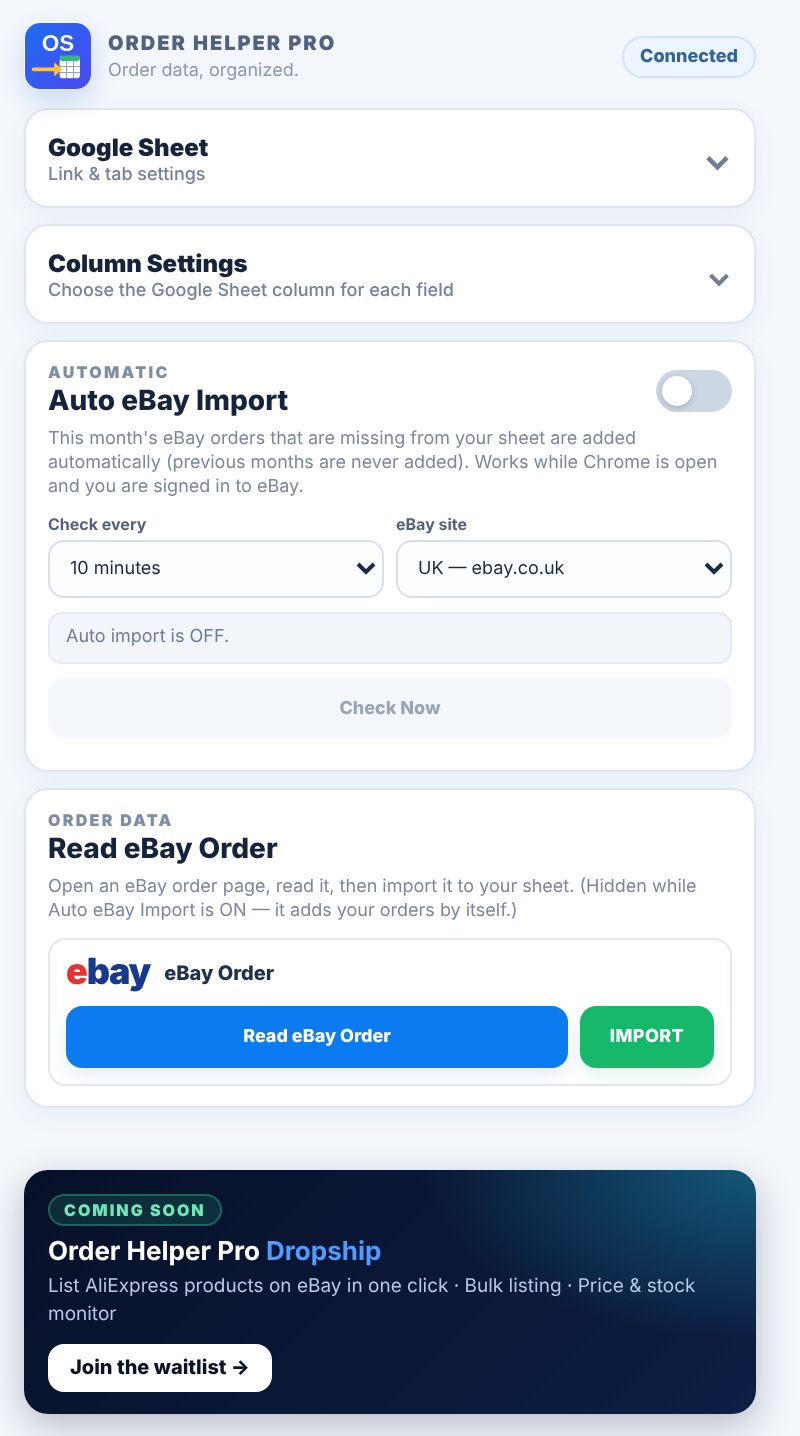
- Click the puzzle icon 🧩 at the top right of Chrome and press the pin 📌 next to Order Helper Pro, so the OS icon is always visible.
- Click the OS icon to open the extension.
Prepare your Google Sheet
Use any Google Sheet you like — your existing order sheet is fine.
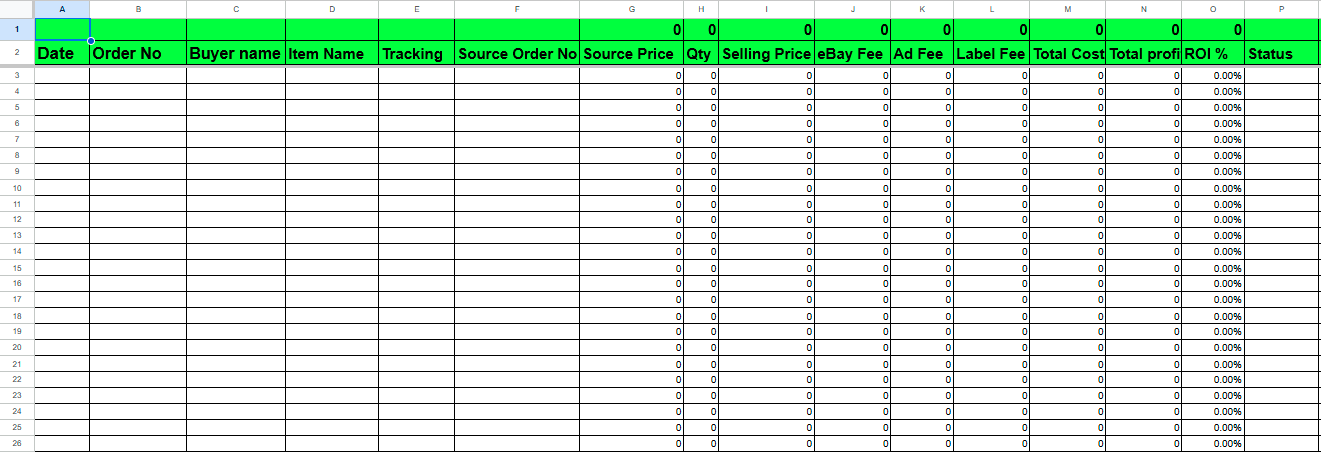
- Create or open the Google Sheet where you keep your orders.
- Make one tab for the month (for example November). The tab name is used in step 3.
- Put a header row at the top, e.g. Date, Order No, Buyer name, Item Name, Tracking, Qty, Selling Price, eBay Fee, Ad Fee, Label Fee, Status.
- Keep your own formula columns (Total cost, Profit, ROI…) — the extension never writes in them.
- Not sure how? Message us on WhatsApp and we will help you set up the sheet.
Connect your Google Sheet
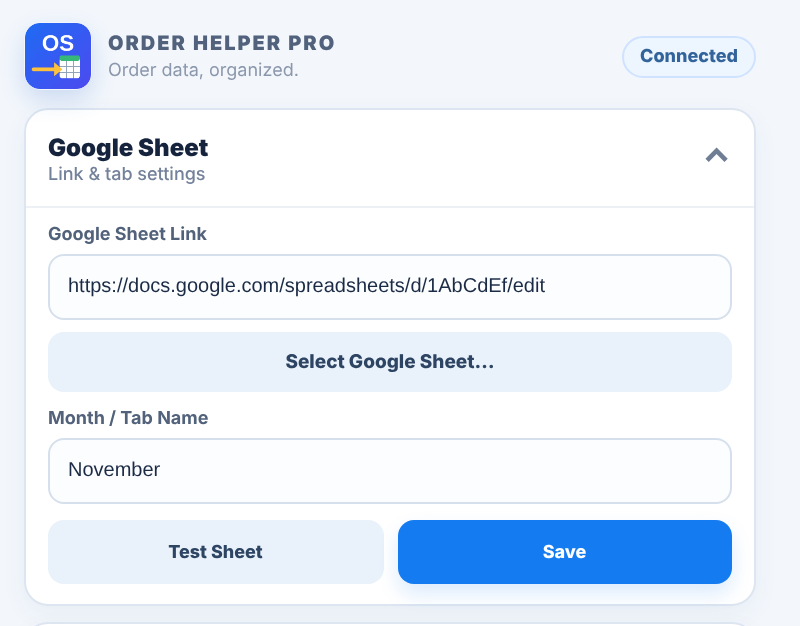
Open the Google Sheet section in the extension. The sheet must be chosen with the Select Google Sheet… button — a link pasted by hand cannot be saved.
- Click Select Google Sheet…. A Google window opens — sign in with the Google account that owns the sheet and allow access.
- Click the sheet you want to use. Its link comes into the extension automatically.
- Keep the extension window open while you choose the sheet. If it closes, the link is lost — click Select Google Sheet… again and pick the sheet again.
- Check the name of the tab at the bottom of your Google Sheet where the orders should go (for example November).
- Type that name in Month / Tab Name exactly as it is written — same spaces and capital letters.
- Click Save. The sheet is saved only when the link came from Select Google Sheet… and the tab name is correct.
- Click Test Sheet — you should see Connected! Sheet: … | Tab: …. Then go on to Column Settings (step 4).
- Each new month, add the new tab in your sheet, type its name in Month / Tab Name and click Save again.
Choose your columns
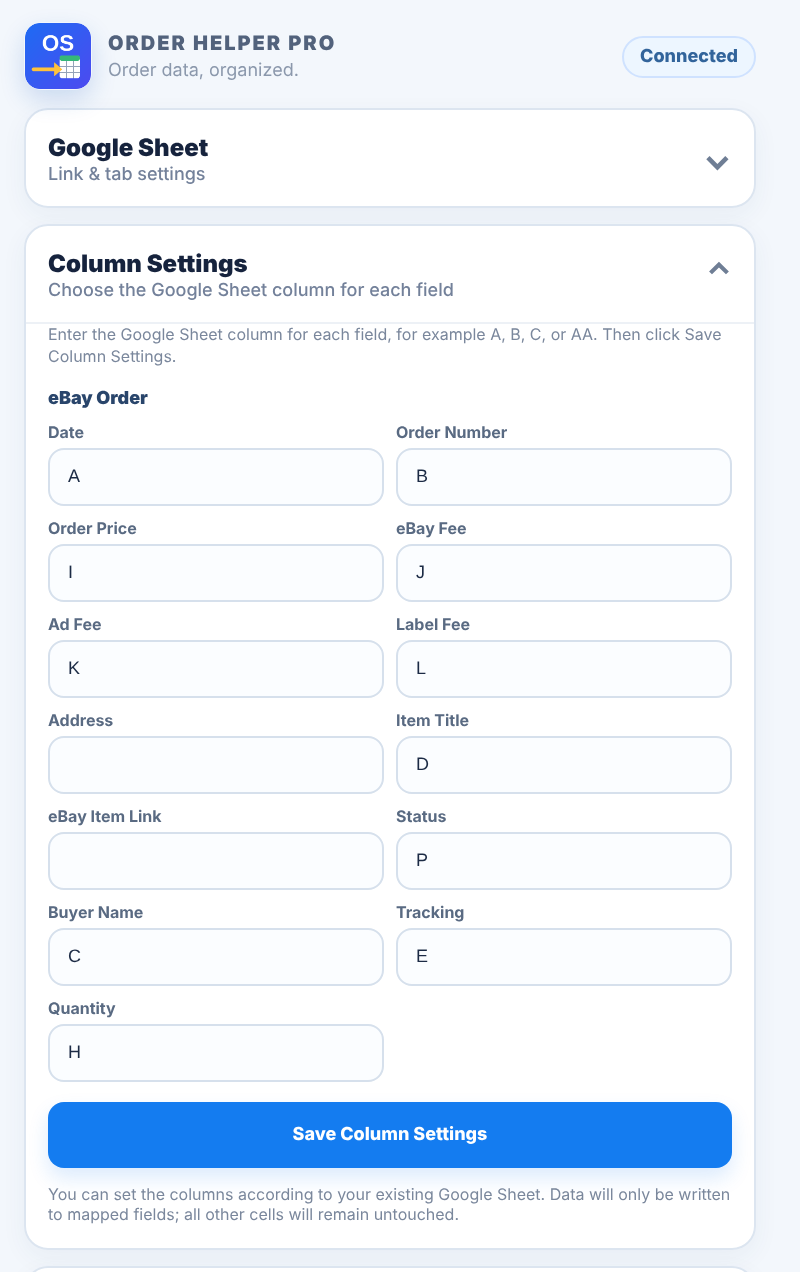
Open Column Settings and type the column letter for each field (A, B … AA).
- Order Number is required — it is used to stop duplicates.
- Fill in the fields you want: Date, Buyer Name, Item Title, Quantity, Tracking, Order Price, eBay Fee, Ad Fee, Label Fee, Status, Address, eBay Item Link.
- Leave a box empty if you don't want that field.
- Click Save Column Settings.
- Only these columns are written. Your other columns and formulas stay untouched.
Turn on Auto eBay Import
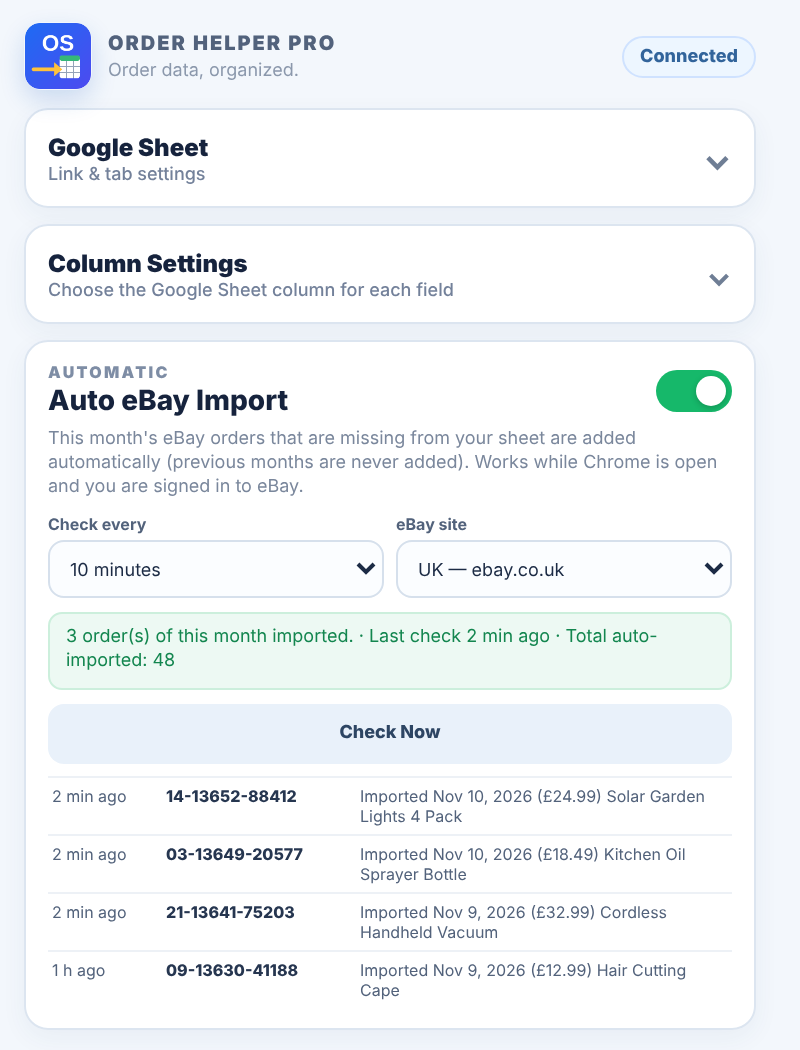
This is the easiest way — set it once and your sheet keeps itself up to date.
- Make sure you are signed in to eBay (Seller Hub) in the same Chrome.
- In Auto eBay Import, pick Check every (5, 10, 15 or 30 minutes) and your eBay site (UK, USA, Germany…). If Chrome asks to allow that eBay site, click Allow.
- Switch the toggle ON. The first time, Google may ask you to confirm access to your sheet.
- Click Check Now to run the first check straight away.
- The green box shows what happened (e.g. 3 order(s) of this month imported) and the list below shows each order added.
- It keeps running while Chrome is open. Only this month's missing orders are added; older months and cancelled orders are skipped.
Read and import a single order
Use this for one order at a time — for example an order from last month.
- Switch Auto eBay Import OFF — the Read eBay Order section appears.
- On eBay, open the order details page (Seller Hub → Orders → click the order).
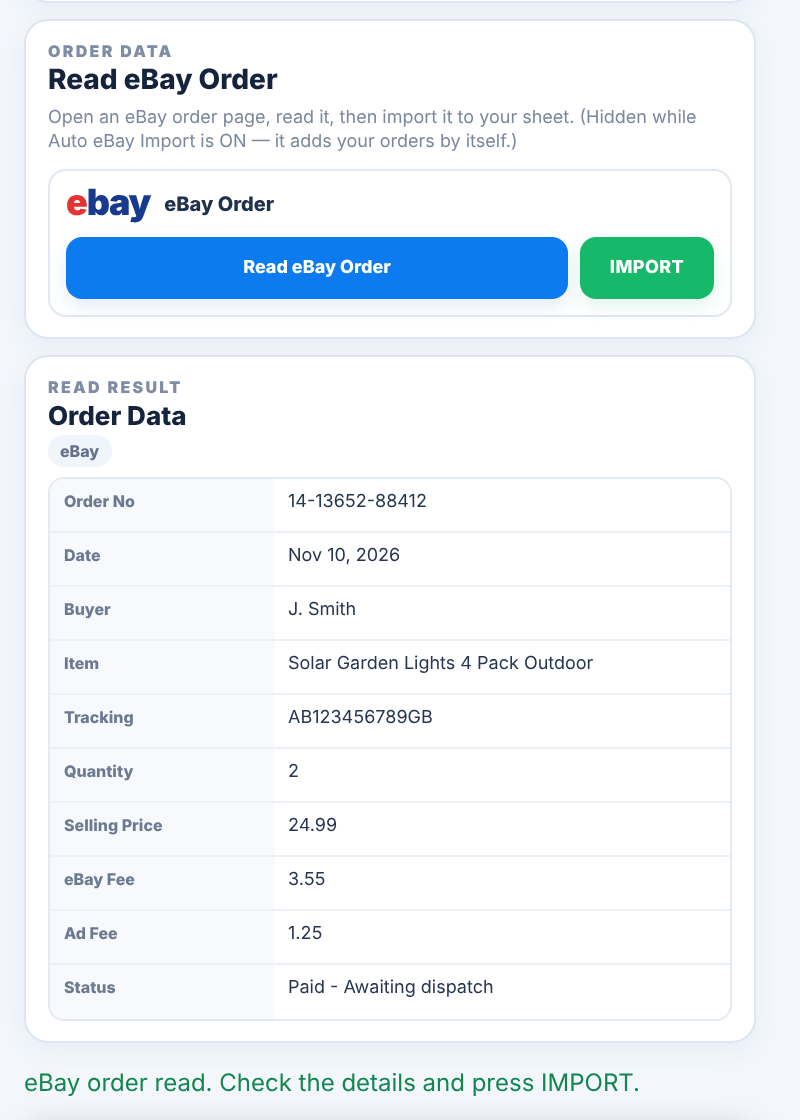
- Click the OS icon and press Read eBay Order.
- Check the Order Data shown below.
- Press IMPORT. The order is written to your sheet. If it is already there, you are told and nothing is added twice.
Check your Google Sheet
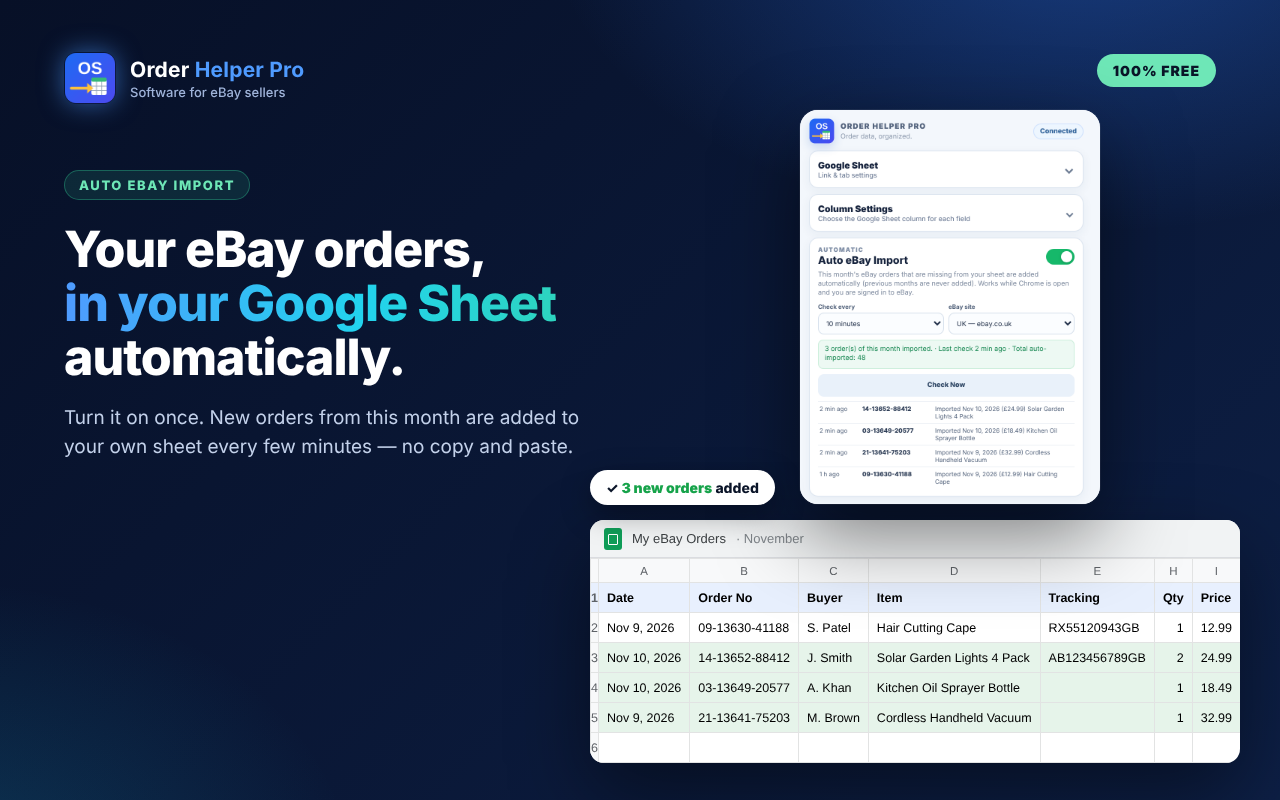
Open your sheet — the new orders are in the next free rows, in the columns you chose.
- Prices and fees are plain numbers (no £/$/€), so your formulas calculate correctly.
- Tracking numbers are added when eBay shows them on the order.
- Add your own supplier cost or notes in your other columns as usual.
Questions? Quick answers.
Is Order Helper Pro really free?
Yes. There is no license key, no sign-up, no trial and no limit on orders. Just install it from the Chrome Web Store.
Which eBay sites are supported?
eBay UK, USA and Canada work straight away. Australia, Germany, France, Italy, Spain, Ireland, Austria, Switzerland, Netherlands, Belgium, Poland, Hong Kong, Singapore, Malaysia and the Philippines also work — Chrome asks you once to allow the site when you pick it.
Which orders does Auto Import add?
Only orders from the current month that are not already in your sheet. Orders from previous months are never added, and cancelled orders are skipped. To add an older order, turn Auto Import off and use Read eBay Order.
Does Auto Import work when my computer is off?
No. It runs inside Chrome, so Chrome must be open and you must be signed in to eBay in that Chrome profile. When you open Chrome again, it catches up with this month's missing orders.
Where is the Read eBay Order button?
It is hidden while Auto eBay Import is ON, because orders are being added for you. Switch Auto Import off and the Read eBay Order section appears again.
Will it change my formulas or other columns?
No. Only the columns you set in Column Settings are written. Everything else in the row — including your formulas — is left as it is.
Why does the price have no £ or $ sign?
On purpose. Values are written as plain numbers (for example 24.99) so that sums and profit formulas work in every country.
Can I paste my Google Sheet link instead of using Select Google Sheet…?
No. For your security the extension can only use a sheet you choose with the Select Google Sheet… button (Google Picker). A link typed or pasted by hand cannot be saved. Keep the extension window open while you choose the sheet.
It says the tab was not found.
The tab name must match the tab at the bottom of your Google Sheet exactly, including spaces and capital letters. Click Test Sheet — it lists the tabs it can see.
The Select Google Sheet window did not open.
Your browser blocked the pop-up. Allow pop-ups for the extension, click Select Google Sheet… again and sign in with the Google account that owns the sheet.
An order was added twice / I want to add an order again.
The extension checks the order number column before writing. If you deleted a row and want to add it again, use Read eBay Order then IMPORT.
Does Order Helper Pro see or store my orders?
No. Order details go straight from the eBay page in your browser to your own Google Sheet. We do not run a server for your orders and never see, store or sell them.
How do I stop it?
Switch Auto eBay Import off in the extension. To remove it completely, right-click the icon in Chrome and choose Remove from Chrome.
Stuck on a step?
Message us on WhatsApp with a screenshot — we'll guide you step by step.